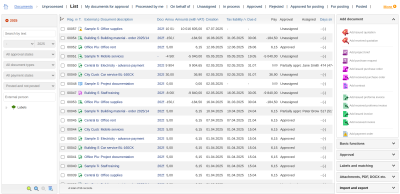
In the Documents module, you record all documents of the company - received and issued, financial and others. A document comes with its electronic version with amounts, labels and attachments (for example a scanned invoice), the approval status and links to related documents - for example a received purchase order linked to an issued invoice.
Document types
Among others, ReFIS knows these document types (all of them are described in the article Document types):
- invoices, proforma invoices and credit notes
- purchase orders, contracts and purchase requests, quotations and project briefs
- delivery notes and goods receipt notes, goods issue notes and stock transfer notes
- tax documents for payment, bank statements, sales receipts and payment orders
- payslips, time sheets, work instructions and general documents
You see and add only the document types you have the right to.
Tabs
Above the list there are tabs; you see each of them only with the corresponding right:
- “Unprocessed” - received documents that still need to be processed; they are described in the article Unprocessed documents
- “List” - the documents of the whole company. Depending on your rights, either only documents marked with labels you have access to, or all documents regardless of labels.
- “My”, or “Processed by me” - documents you created, requested or paid, documents from you and for you and, if you approve, also those you decided on
- “My documents for approval”, “On behalf of”, “Unassigned”, “In process”, “Approved” and “Rejected” - the approval tabs, described in the article Approval process. If the company has only one kind of approval enabled, the “My documents for approval” tab and the approval function bear its name.
- “Approved for posting”, “For posting” and “Posted” - documents by whether they have already been exported to accounting
- “Contract conditions” - an overview of contract conditions; you see it only with the corresponding right and if the company has automatic calculations enabled
Tabs that do not fit are under “More”.
Filters and search
On the left you narrow the list by period, approval status, document type, payment status, posting, external person and labels. The “Search by text” field searches the document description, registration number, document number and external number; you enter a person in the “External person” field.
With the magnifying glass below the filters you open the detailed search with dozens of criteria - amounts, all dates, persons, currency, note, bank account, cash desk, payment card, related documents and more. With the “Is marked” and “Not marked” criteria, you can also search sub-labels - for example a department together with its sub-departments. The “Marking with labels” option determines whether you search for all documents, marked, partially marked or unmarked ones. You can save the search and then find it on the left below the filters; it can also be shown as a separate tab.
Adding a document
You add a document with a function from the “Add document” section in the right panel - for example “Add issued invoice”, “Add received purchase order” or “Add received sales receipt”. You mostly do not add received documents by hand; they arrive via unprocessed documents. You create several documents at once, for example invoices from purchase orders, in bulk.
The form differs by document type; in general you enter:
- the document header - number, dates, the customer or supplier from the address book, the due date and other data as they are on the document
- amounts - the document lines with description, quantity, price, VAT rate and labels
- Related documents
- the approval participants - manually or according to rules for documents
- a note and attachments, for example the PDF of the invoice
Functions for selected documents
You select a document by checking it in the list and choose the function in the right panel. The functions are divided into groups:
- “Basic functions” - “View document”, “Edit document” and “Delete document”; “Lock document” and “Unlock document”; “Cancel document” and “Reverse document cancellation”
- “Approval” - “Approval of documents” and “Submit the document for approval”, or signing, processing and voting; they are described in the articles Approval process and Document flow
- “Labels and matching” - “Edit labels”, “Edit matching” with payments, “Mark as closed” and “Mark as delivered”
- “Attachments, PDF, DOCX etc.” - “Edit attachments”, “Download attachments”, “Download generated document” (PDF, XLSX or DOCX), sending documents by e-mail, via Peppol or by post, and “Send payment orders to the bank”
- “Import and export” - “Export for accounting” and other exports
Some functions deserve an explanation:
- A cancelled document stays in ReFIS; only the document and its amounts are crossed out in the list. For most users, cancelling is therefore better than deleting; only a small group of people should have “Delete document”.
- Nobody can change a locked document. The lock also applies to its amounts, time entries and goods movements.
- A user can edit all attachments, or only their own - the ones they added themselves. For approvers we recommend only their own attachments: this way they can add, for example, a contract or supporting materials to the document, but cannot change the scanned invoice that someone else uploaded. Both rights also exist in a variant for unapproved documents only.
You create payment orders from documents and from payables in the receivables and payables reports; the procedure is described in the article Create payment orders.