With matching you tell ReFIS what each payment paid - for example, that income on the account is the payment of a specific issued invoice. Only once it is matched does the invoice become paid, disappear from receivables and payables and stop being counted in the cash flow.
You can match:
- a payment with an invoiced amount (an invoice, a proforma invoice) or with an agreed amount, for example an installment under a contract
- invoiced amounts with one another - a receivable with a payable, i.e. a mutual offset
- amounts from different folders, for example a requested amount with an agreed one
States
- invoiced amount: unpaid, partially paid, paid
- payment and other amounts: unmatched, partially matched, completely matched
A payment or an amount that you are not going to match any more (for example a bank fee or an unrecoverable remainder), mark as closed - ReFIS stops offering it for matching.
Automatic matching during import
When you import a bank statement, ReFIS by itself only assigns a person to the payment - by the counterparty's account number or by an invoice with the same variable symbol (payment reference) and the same amount. It matches the payment itself only according to the rules for import of payments, which you set in the menu Other → Tools → Rules for import of payments, separately for each account and payment type.
A rule has conditions and actions. A condition can be, for example, that the variable, constant or specific symbol (or the payment reference) matches an invoice, a document number, a purchase order or contract number or a person identifier, or a matching amount, counter-account number or text in the description. An action can be:
- match with the unpaid amounts of that invoice or proforma invoice
- match with the oldest unpaid amounts from that person - useful when a customer pays several invoices at once or with a wrong symbol
- match with a purchase order or with the oldest unpaid installment of a contract
- change income to a deposit and expenditure to a withdrawal (transfers between your own accounts), mark with labels, assign a person, link amounts, mark as closed
Variable, constant and specific symbols are a custom of Slovak and Czech banks; in other countries payments are matched by the payment reference. ReFIS ignores leading zeros in symbols.
If you add a document only after the payment has arrived, ReFIS can match it afterwards - in the menu Other → Settings → Document settings switch on the option “After saving a document, match unmatched payments using the rules for import of payments”.
How ReFIS splits a payment
When a payment belongs to several amounts, ReFIS first looks for exact pairs (the same person, symbol and amount, then symbol and amount, then the amount only). It splits the rest starting from the oldest amounts by due date - which is why an amount can also be partially paid. Whatever is left of the payment stays unmatched and the payment is partially matched (for example an overpayment).
Matching tool
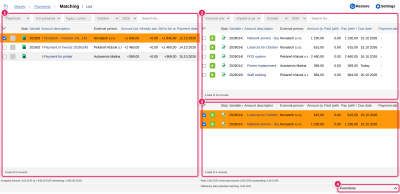
You open the matching tool in the Payments module with the “Matching” tab. The screen has three parts:
- on the left (1 in the picture) you select an amount folder (for example Payments) and filter by state, type, currency, bank account or text - for example only unmatched income
- top right (2) the same for the other side, for example unpaid invoiced amounts
- bottom right (3) suggestions: when you click a payment on the left, ReFIS offers the most suitable amounts - from the same person with the same symbol, a similar amount, the same labels or a close due date, or from anyone with the same symbol or amount. Amounts already matched with the payment are checked.
Check the amounts that the payment paid - below the list you see “Difference after potential matching” - and in the Functions panel (4) use “Confirm matching”. Confirming replaces the payment's existing matching - you cancel a matching by unchecking the amount and confirming with the “Confirm matching” function. If the payment and the amount have opposite directions (income and expenditure), ReFIS asks before matching.
With the “Refresh payments” button you start the import of payments from the banks right away, without waiting.
Other places for matching
- in the Documents module with the “Edit matching” function
- in the payment or amount form with the “Set matching” link in the other functions
- in the cash flow management reports with the “Set amount matching” function
- some functions match by themselves - for example “Pay the amount” on an invoiced amount creates a payment that is already matched
In these forms ReFIS offers the amounts sorted from the most suitable: first from related documents, then from the same person with the same symbol or labels, and finally from other persons by the text searched for.
Matching and linking
Linking is not matching: it joins two records of the same payment - for example a card payment from the bank statement and the same payment on a received sales receipt - so that it is not counted twice in reports. In the matching tool you do it with the “Confirm the link” button, automatically with a rule with the action “link these amounts”.
You use the matching tool with the “Matching (matching tool)” right, and matching in documents with the “Edit matching” right.