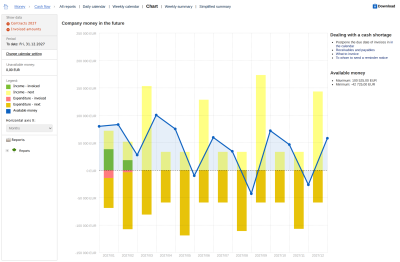
Cash flow management shows you how much money the company will have in its accounts in the coming days, weeks and months - and you decide when to pay what so that money does not run short. ReFIS calculates this from what is already in the system: from unpaid issued and received invoices and from future amounts - budgeted, requested, agreed and delivered.
You will find the reports in the menu Money → Cash flow (without the Payments module in the menu Money → Reports):
- “Cash flow forecast (daily)” and “Cash flow forecast (weekly)” - a calendar of amounts by day or week
- “Chart” - the expected money balance over time
- “Weekly summary overview” and “Weekly summary overview (simplified)” - totals by week
You switch between the reports with the tabs above the report. Depending on rights, some reports may not be displayed. “Chart” is shown if you have the right to the daily or weekly calendar.
How ReFIS calculates
- The opening balance is the sum of money in all bank accounts and cash desks at this moment; ReFIS converts foreign currencies at the current exchange rate. You can overwrite it in the calendar settings - for example, when you know about a payment that is not in ReFIS yet.
- Each amount is placed according to the date when you will pay it or when you will be paid (“We will pay on”, “They will pay on”), not according to the original due date.
- Amounts for which only a month is entered are placed by ReFIS on the last day of the month; amounts with only a year on December 31. For example, an amount planned for August appears in the daily calendar on August 31.
- Whatever was not paid on time, ReFIS moves to today every night. You therefore see unpaid overdue invoices on today's date - they do not drop out of the overview.
Daily and weekly calendar
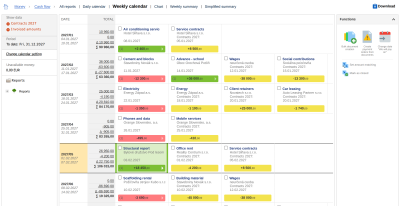
Each row is a day (or week) in which you pay something or are paid something. The amounts are in the cells; in the column “Total” next to the date you see income, expenditure, their difference (Δ) and, in bold, the expected money balance on that day (∑).
A cell shows the description, the customer or supplier, the amount folder, labels, the date and the sum that still has to be paid. If the “We will pay on” date differs from the original due date, the original date is crossed out; if the amount is partially paid, the original sum is crossed out in parentheses. Amounts of the same document are together in one document cell; you expand it with the arrow.
Colors:
- green - invoiced income (issued invoice)
- dark red - invoiced expenditure from an approved document
- light red - invoiced expenditure from an unapproved document
- yellow - future amounts (budgeted, requested, agreed, delivered), each amount folder has a different shade
In the calendar settings (“Change calendar setting”) you change the opening balance, the period (“To date”) and the amount folders to be included, and you can narrow the report by text or labels. Invoiced amounts are always in the calendar. “Restore default filters” returns the original settings.
What you can do with the selected amounts
You check the amounts (several at once, too) and choose a function:
- “Change date "We will pay on"” - you move the payment to another day, for example when you see that the money would not be enough in a given week. For budgeted, agreed and other amounts from amount folders, their date changes.
- “Create payment orders from documents”
- “Bulk document creation” - for example, invoices from agreed amounts
- “Set amount matching” and “Mark as closed”
With the function “Download” you save the calendar to Excel, including a sheet explaining the colors.
Chart
The chart “Company money in the future” shows:
- at the top, the blue line “Available money” - the expected money balance by week or month, starting from the opening balance; if you have accounts whose money you cannot use freely (not available), also a line with their amount
- at the bottom, bars of income and expenditure, invoiced and future separately
The default period is the next three months. Next to the chart you see the highest and lowest money balance in the period and links to what to do when money runs short - move the due dates of invoices in the calendar, look at receivables and payables, what to invoice and to whom to send a reminder notice.
Weekly summary overview
Each row is a week. The column “Total” shows income, expenditure, the difference and the expected money balance, the other columns the same separately for invoiced amounts and for each amount folder - so you see whether the trend is driven by invoices, the budget or contracts. With the magnifying glass you open the list of amounts the number is made up of. The simplified overview shows only the expected money balance at the end of the week.