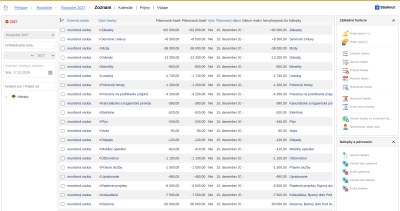
In the Budget module, the company records what income and expenditure it expects in a future period - for example in the next year or month. It answers two questions:
- how much money the company will need and when (the defined need of the company)
- how much money the company will receive and when (the defined wish of the company).
Creating the company budget
The company budget is divided into logical parts, and one person is responsible for each of them. We recommend drawing it up for a calendar year:
- each part is drawn up by the employee responsible for it
- the CEO together with the CFO puts the budget of the whole company together from them.
Company budget
The budget consists of budgeted amounts - sums the company expects. A budgeted amount can be:
- Income of money. This is how you enter, for example, the sum contracted for a project, or regular income from service contracts.
- Expenditure of money. It can be used, for example, to record the costs that project managers expect for a project, regular payments to insurance companies, wages or other payments.
You enter an amount for an exact day or, when the date is not known, the month and year are enough. If the folder has “Track changes in the folder” enabled, the original values are kept in the history when you edit an amount, so that the changes to the budget can be seen.
Amounts are grouped into amount folders. You can create any number of folders, so the company can track its income and expenditure separately - for example wages separately, rent and energy separately. Folders with the type budgeted belong to the budget. The other folder types and the amounts that come from documents are described in the article Amounts.
You can mark each budgeted amount (both income and expenditure) with a label (that is, choose for example the department, project, reason for payment or subject the amount relates to). The position from the organizational structure or the employee must be assigned rights to insert into the specified items of the label structure.
Drawing up the budget
When drawing up a new budget, it is recommended to proceed as follows:
- each head of department draws up the part for their department; the outline for heads of departments serves as the basis
- each project manager draws up the budget for each of their projects; the outline for project managers serves as the basis
- the company-wide parts for IT, cars, employees, operating assets and external workers are drawn up:
- the employee responsible for the company's operating assets draws up the part for the company's operating assets, namely:
- from the parts of the individual departments
- by adding data according to the corresponding part of the outline for the company's operating assets
- the employee responsible for cars draws up the part for cars, namely:
- from the parts of the individual departments
- by adding data according to the corresponding part of the outline for cars
- the HR officer draws up the part for human resources and external workers, namely:
- from the parts of the individual departments
- by adding data according to the corresponding part of the outline for the company's employees and external operating workers
- the employee responsible for IT draws up the part for IT, namely:
- from the parts of the individual departments
- by adding data according to the corresponding part of the outline for IT.
- the employee responsible for the company's operating assets draws up the part for the company's operating assets, namely:
- the budget of the whole company is drawn up:
- agreed and other amounts that belong to the budget period are taken over into it - for example monthly payments from contracts; the budget calendar offers them
- budgeted amounts for projects, the total budgeted amounts for IT, cars, operating assets, internal and external employees, and those budgeted amounts of departments that are not part of these total amounts (e.g. machines, equipment, tools,...) are included in it automatically
- the CFO adds the remaining amounts for the company (financial assets, amounts for the company as a whole,....).
Tracking budget changes
Changes to amounts are recorded in the history only in a folder that has “Track changes in the folder” enabled. ReFIS then keeps the original value and each change of it with the date and the employee who made it. The status of the folder (new, approved, inactive) does not affect the tracking of changes.
Sample outline of the company budget
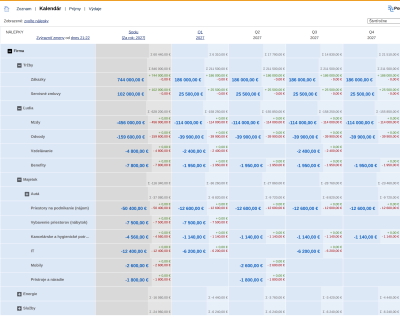
The outline of the budget of the whole company can look like this, for example - the rows of the calendar in the picture above:
- revenue (jobs, service contracts)
- people (wages, contributions, training, benefits)
- assets:
- cars (leasing, fuel, servicing and repairs)
- business premises (rent)
- furnishing of premises (furniture)
- office and hygiene supplies
- IT
- mobile phones
- devices and tools
- energy (electricity, gas, water, waste, mobile operator)
- services (accounting, legal services, cleaning)
Sample outline for a department
Sample outline of a department budget:
- employees:
- wages:
- wages for new employees
- wage increases
- wage reductions (e.g. employees leaving)
- training
- mandatory medical check-ups
- wages:
- external operating persons for the department
- cars:
- purchase of cars
- purchase of car accessories (tracking system, alarm, hands-free,...)
- purchase of IT
- telephones, communication services
- purchase of room furnishings
- purchase of office equipment
- purchase of office supplies
- machines, equipment, mechanisms (for the company, not for a specific project)
- purchase
- sale
- disposal
- lease, rental
- maintenance
- small reusable assets (tools, devices, protective equipment)
- purchase
- disposal
- stock:
- purchase
- sale
- disposal
- other (for example unexpected events).
Project budget
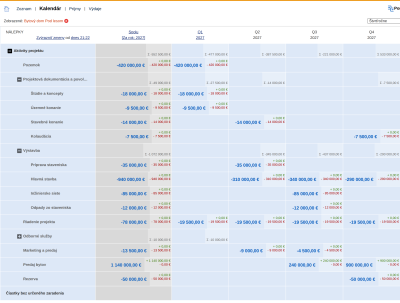
The budget of one project contains:
- expenditure that serves as the basis for the quotation to the customer
- the quotation for the customer, that is, income.
Each project manager must:
- create
- gradually detail
- continuously update
- check how it is being met.
The project manager must draw up the first version before preparing the quotation and then base the quotation on it and on the agreed prices.
It is practical to break a project budget down by project activities. You enter the activities as labels - one outline for all projects - and mark the amounts with both the activity label and the project label. In the calendar you then choose the outline of activities and filter by the project.
Sample outline of a project budget
Sample outline for a construction or development project:
- land
- project documentation and permits:
- studies and concepts
- zoning procedure
- building permit procedure
- final building approval
- construction:
- site preparation
- main building
- utility networks
- construction site waste
- project management
- professional services (surveying services, expert reports and surveys)
- marketing and sales
- sales revenue
- reserve
Copying the budget
After selecting amounts in the list and choosing the function “Copy amounts”, you can:
- copy them within one amount folder
- - in addition to their original labels, the copied amounts also get the ones you choose in the “Mark with labels” field
- - you remove the original labels in the “Remove labels” field
- For example, copying amounts from Project A to Project B:
- Amount 1 ... 900 EUR (marked with the labels 'Project A' and 'Preparation of documentation')
- Amount 2 ... 300 EUR (marked with the labels 'Project A' and 'Construction')
- Amount 3 ... 600 EUR (marked with the labels 'Project A' and 'Removal of construction site waste')
- After copying, new amounts with the same names are created:
- Amount 1 ... 900 EUR (marked with the labels 'Project B' and 'Preparation of documentation')
- Amount 2 ... 300 EUR (marked with the labels 'Project B' and 'Construction')
- Amount 3 ... 600 EUR (marked with the labels 'Project B' and 'Removal of construction site waste')
- copy them to another amount folder
- - you choose the target folder in the “Create in folder” field; every folder you can view is offered, not only budget folders
- For example, copying from the budgeted folder “Budget 2027” to the agreed folder “Contracts”:
- Amount ... 1200 EUR (folder “Budget 2027”)
- After copying, a new amount with the same name is created:
- Amount ... 1200 EUR (folder “Contracts”)
- You match the copied amount to the original one by ticking “Match new amounts to the original amounts (when changing the folder)”. By ticking “Mark original amounts as closed” you close them at the same time.
Calendar
You can display the budget as a flat List or as a Calendar. In the calendar, the rows are labels and the columns are date intervals (day, week, month...). In addition, the calendar has a total column, for which you set the date period over which it adds up the amounts. It can be the whole period, a selected year or any selected date period.
The calendar can contain rows for all labels, or you choose another outline in its settings.
Each cell of the calendar shows:
- the total amount of the cell (in blue), that is, the sum of the budgeted amounts for the period. In each cell this amount is divided into:
- total income (in green) and
- expenditure (in red).
- In addition, the cell contains the sum of the amounts that belong under the labels of the row (in grey). The total values in the cells include only amounts that are not cancelled.
Clicking a calendar cell displays all amounts that belong to the date period (column) and have the corresponding classification (row). After clicking a cell, cancelled amounts are shown as well. You can then edit the amounts, cancel them, undo the cancellation or delete them. You can also create a new budgeted amount. It will have the classification and date of the cell you clicked preset.
You can filter the amounts in the calendar by any number of labels. The calendar then shows only those that belong to the cell and at the same time have all the filter labels. When filtering is on, a row is added at the bottom with the sum of the amounts that match the filter but are outside the selected outline.
When you hold the mouse cursor over individual cells of the calendar, an information icon appears in their bottom right corner. When you move the cursor over this icon:
- for the column with labels, the documents and amounts marked with the label or its sub-labels for the period set for the total column are shown - contracts, requested, agreed and delivered amounts, invoices and payment parts. Only amounts from folders of a later type than the folder in which you are drawing up the budget are offered. With the + icon you insert them into the budget: ReFIS creates budgeted amounts with the same labels and matches them to the original ones. For example, when drawing up the budget for 2027, a cleaning contract for an indefinite period with a payment of 300 EUR per month is shown here, and with one click you insert it into the budget for the whole year.
- for the total column and the other columns, details of the total amounts are shown, with the option to compare the budget with the actual figures for the current and previous year