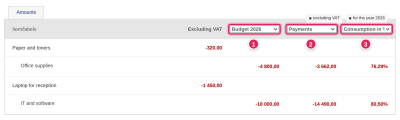
You track budget vs. actual - that is, the comparison of budgeted amounts with actual figures - in three places in ReFIS:
- in the Income and expenditure grouped by labels report
- when approving a document
- in the budget calendar
When approving a document
Below each amount of the document being approved are its labels, and for each label three columns for the year according to the document's due date:
- the folder you compare against - for example Budget 2026
- the actual figures, for example Payments (the sources are compared below)
- the difference - “Remaining on the account” (budget minus actual) or “Consumption in %” (what percentage of the budget has already been consumed)
For a received invoice for a laptop, the approver thus immediately sees how much of the annual IT budget the company has already spent. Above the table you see whether the amounts are excluding or including VAT and for which year. ReFIS remembers the choices in the columns for further documents.
The comparison is shown only if the company has the “Income and expenditure grouped by labels” report enabled.
In the first column you choose a folder of budgeted, requested, agreed or delivered amounts, “Invoiced”, “Total (agreed + invoiced + delivered)” or “Payments”; for requested, agreed and delivered folders, for “Invoiced” and for “Total” also the “only approved” variant. The first column offers all options except “Payments and outstanding approved invoiced amounts”. The second column offers what comes after the choice in the first column in this order (budgeted, requested, agreed, invoiced, delivered, total, payments and “Payments and outstanding approved invoiced amounts”); if a folder of delivered amounts is on the left, “Invoiced” and “Invoiced; only approved” are additionally on the right.
In the budget calendar
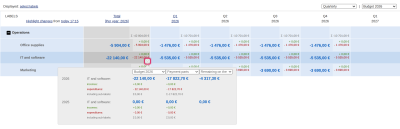
When you hold the cursor over a cell in the budget calendar, an ⓘ icon appears. When you move the cursor onto it, ReFIS shows the budget, the actual figures and the difference for the current and the previous year for the total column and the other columns. In the drop-down fields you choose the folder, the actual figures (“Payment parts”, “Payment parts and unpaid approved invoiced amounts”, “Invoiced amounts approved”, “Invoiced amounts all” or “Invoiced amounts all + cash payment parts not linked to invoiced amounts”) and the difference (“Remaining on the account” or “Consumption in %”).
Sources of actual data
The actual figures you compare the budget with can come from different sources:
| Actual | Advantage | Disadvantage |
|---|---|---|
| Invoiced |
|
|
| Invoiced; only approved |
|
|
| Payments and outstanding approved invoiced amounts |
|
|
| Payments |
|
|