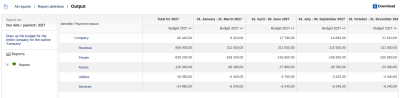
The report Income and expenditure grouped by labels is the main management report of ReFIS. It adds up income and expenditure along the tree of labels and so answers questions such as:
- how much a project or job cost us and how much it earned (is it profitable?)
- how much individual cars, buildings or departments cost
- how the budget is being met - plan versus actual
- how costs and income develop month by month or quarter by quarter
You will find the report in the menu Money → Payments → Income and expenditure grouped by labels (without the Payments module, in the Reports menu). Under the name “Budget vs. actual” you also open it from the projects and budget menus - it is the same report with a preset comparison of plan and actual.
Examples
- Profitability of jobs - group by the label “Projects”, and in the columns show “Invoiced” and “Payments” with both income and expenditure. For each project you see how much you have invoiced and how much you have paid for it.
- Car costs - group by a label with payment reasons (for example fuel, servicing, insurance) and in the “Repetition” section select the label “Cars”. The report is repeated for each car separately.
- Budget vs. actual - in the columns select a budget folder (for example “Budget 2027”), total income and expenditure, and “Difference in %”. You see what percentage of the budget still remains.
- Monthly development - select a period of the year and “Split columns” by months. The report calculates the totals for the selected period as well as the values for the individual months (or another selected period - weeks, quarters). The breakdown by months can be either for the given month alone, or cumulative.
Report definition
The form in the “Report definition” tab has these sections:
Grouping
“Group by” determines the label tree that forms the rows of the report - for example payment reasons, projects or departments. The first row is the selected label, and its total is also the grand total; below it are its sub-labels, each with a total for itself and for its own sub-labels.
Filter
Which amounts are included:
- “Labels” - only amounts marked with at least one of the selected labels, optionally also their sub-labels; “Skip labels”, on the contrary, leaves out amounts with these labels
- “Dates” - the period according to:
- “Due date / payment” - for payments the actual date of payment, for invoices the due date, for budgeted, agreed and other amounts the date on which they are to be paid
- “Delivery” - the end of fulfillment
- under “more” also the date of issue of the document and the fulfillment period; by ticking “From the amount, include only the portion corresponding to the fulfillment period”, an amount fulfilled over a longer time is included only with the part falling into the selected period (for example only one month of an annual rent)
- “External person” and “Responsible person” (the owner of the label)
- “Approval” - only approved, only unapproved or all documents
- amounts only from certain document types, or on the contrary without them
- “Project location” - when grouping by projects
Repetition
“Repeat for” repeats the whole report for each sub-label of the selected label - for example for each car or each department separately, with a heading above each block.
Display
- amounts including or excluding VAT, in the home or another currency; with the link “Exchange rates” you enter your own exchange rates or the rates on a particular day
- “Maximum depth” - down to which level of the label tree rows are shown
- “Skip zero rows”
- “Split columns” by weeks, months or quarters - “By due date or payment date” or “By fulfillment date”. You have to enter both limits of the period. The first column is always the total for the whole period. By ticking “Split cumulatively”, each column becomes a total from the beginning of the period.
- “Display method” - “Columns” (values side by side) or “Rows” (values one below another). All columns (amount types) within one displayed period are placed side by side or one below another - either for the whole period of the report, or also for each sub-period (for example each month).
- additional columns: external identifier, responsible person, and for projects the location and the external person of the project
- “Columns” - which amounts the report shows, always with the option of income and expenditure separately:
- “Total income and expenditure” - everything you select in “Amount types included” together; from invoices and amount folders only the unpaid part is taken, plus the payments, so nothing is counted twice
- individual amount folders (budget, agreed, delivered, requested)
- “Invoiced” and “Payments”
- “Difference” - a folder (for example the budget) compared with total income and expenditure, invoiced amounts or payments; you choose it in the drop-down field below the checkboxes “Difference”, “Difference in absolute values” and “Difference in %”. The same field also contains the gross margin - for total income and expenditure as well as for invoiced amounts. It is shown only as a percentage: the difference between income and expenditure divided by income (0 % without income).
Result
The “Output” tab contains a table with rows by labels and columns according to the display settings. By clicking a number you see the amounts it is made up of, and with a link you open all of them in the list.
If you select the filter “Labels” or “Repeat for”, the filter may also be met by amounts that are not marked with any label from the grouping (they have a label from the filter labels but do not belong to any row of the report). Their total is in the row “Amounts without specified grouping” - if there is a lot in it, labels are missing on the amounts.
The totals in the report do not respect access rights to labels - when you click a number, however, you see only the amounts you have access to. A user with the right only to the reports “for which he is responsible” sees only the labels owned by him or by his subordinates.
Saving and sharing
With the function “Save report or rename report” you give the report a name and then find it on the left in the tree “Saved custom reports”. When saving, you can specify the parameters the user chooses when opening it - period, year or labels; the other criteria are fixed.
With the function “Edit report rights” you make it available to colleagues - they see it in “Reports shared with me” and only enter the parameters. In this way you can, for example, give each project manager a report for just his project, without him having to understand the form. “Load report criteria” returns a saved report to the form for editing.
Rights (set in the position):
- “Income and expenditure grouped by labels” - the whole report
- “…for which I am responsible” - only your own labels and the labels of your subordinates
- “…: share report” and “…: view shared report”
- “…: in the amount detail, show all included amounts” - when clicking a number, also amounts with labels the user has no access to