The approval process handles the electronic circulation of documents in the company: a document gets a list of approvers, they approve or reject it one after another, and ReFIS uses their decisions to determine whether the document is approved. Two basic rules apply:
- a document is approved when everyone in the list of approvers has approved it
- a document is rejected when even one of them rejects it
Who approves a document
The list of approvers of a document is created:
- manually - in the form when adding or editing the document
- automatically according to the rules for documents - for example, received invoices over 500 EUR are approved by the director, documents with the label “Marketing” by the head of marketing, an invoice for a purchase order by the person who requested the purchase order
- later with the function “Submit the document for approval” (see below)
The same person is in the list only once, even if several rules add them.
Order: a document is approved from the bottom of the list upwards - the person at the bottom decides first. Until it is your turn, you can see the document, but you do not have to deal with it yet.
During an approver's absence, their deputy decides for them. You are alerted to documents waiting for you by e-mail notifications and by the Tasks menu, where you also find a notice of how many documents you have to approve; clicking it opens them.
Where to find documents for approval
In the Documents module, there are tabs above the list according to the approval status. You see each of them only if you have the right to it.
These tabs show documents regardless of labels and other access rights. So you will see a document you are to approve even if you otherwise have no access to its labels:
- “My documents for approval” - documents you are to approve and have not decided on yet. “I am currently next in line” is checked by default - you only see documents where it is your turn. When you clear it, you also see documents where it is not your turn yet; these are gray. Documents that someone has already rejected also belong here - you can still give your opinion on them too.
- “On behalf of” - documents to approve for a colleague you are deputizing for.
- “Processed by me” - documents you or your deputy have already decided on. Depending on your rights, also documents you created or requested, documents you paid (by card, from a cash desk or from an account you are responsible for), and documents where you are listed as the sender or recipient.
For these tabs, access rights according to labels apply, so everyone sees only the documents of their part of the company:
- “Unassigned” - documents that do not have approvers yet. This way, the company can entrust several people with assigning approvers, each for their own area: for example, an IT department assistant who only has rights to the label “IT” sees and assigns only documents of the IT department.
- “In process” - documents that are currently being approved.
- “Approved” and “Rejected” - documents after the final decision.
A user with the right to “Processed by me” also sees, in the tabs “Approved” and “Rejected”, the documents they decided on, regardless of labels.
The tabs for posting do not follow labels but their own rights:
- “Approved for posting” - approved documents that have not been posted yet.
- “For posting” and “Posted” - documents according to whether they have already been exported to accounting, regardless of approval.
How to approve a document
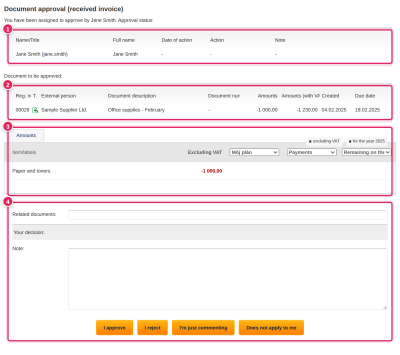
In the tab “My documents for approval”, you check the document and choose the function “Approval of documents”. In the window you see:
- the list of approvers - who has already decided how, when and with what note
- the document being approved
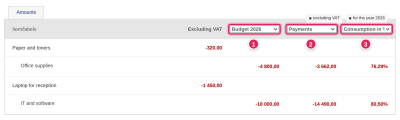
- the amounts of the document with labels and the budget consumption status, by which you judge whether the company can afford the expense
- the note and the decision buttons
On the right is a preview of the attachment - the scanned or received invoice.
If you check several documents at once, you select one decision for all of them in the field “Action” - for example, for a series of small invoices you have already reviewed.
Depending on rights, some buttons may not be displayed - ReFIS offers “I'm just commenting” and “Does not apply to me” only to a user with the corresponding right.
You decide with a button:
- “I approve”
- “I reject” - the note is mandatory, so that your colleague knows what to correct
- “I'm just commenting” - you add a note without a decision, for example a question for a colleague; the note is mandatory
- “Does not apply to me” - the document was assigned to you by mistake; you drop out of the list of those whose decision is required; if you were the last one who had not decided and the document would thereby become approved, ReFIS assigns it to the person who added you to the flow
- “Withdraw my earlier decision” - displayed if you have already decided on the document; you cancel your decision and can decide again
In the note you can tag colleagues with the @ character; they receive a message about it.
When a document is approved
- A document is rejected as soon as anyone rejects it. Those who have not decided yet can still give their opinion on it; whoever rejected it can withdraw their decision.
- A document is approved when everyone whose decision is required has approved it and, at the same time, the conditions from the rules are met - for example, the minimum number of approvers and attachments. Otherwise it remains “Partially approved”.
The approval statuses are “Unassigned”, “Assigned”, “Partially approved”, “Approved” and “Rejected”.
Every decision and every change to the list of approvers is recorded in the approval history in the document detail. A user with the corresponding permission can choose the function “Ignore approval action” here. You use it, for example, when an approver rejects a document and you want to return it to them for approval again.
The original decision remains recorded in the history, but ReFIS does not take it into account when determining the resulting status of the document. ReFIS submits the document for approval again to the user whose approval action is ignored.
In the same section you can also download the “Approval overview”.
Submit the document for approval
If someone else is to give their opinion on the document, you select the function “Submit the document for approval”. At the top you see the details of the document, at the bottom the list of approvers:
- you add a new approver by selecting them from the list - only people who have the right to approve are offered; if the company has allowed external participants, you can also search for a person from the address book
- you change the order with the up and down arrows; the document is approved from the bottom up
- you remove an approver from the list with the cross
- with the button “Retrieve approvers by rules” you add approvers according to the rules
Depending on your rights, you can edit the whole list, only the approvers you added yourself, or only retrieve approvers by rules.
If you submit several documents at once, you choose whether to add the new approvers at the top or at the bottom of the list, or to remove the original ones, and you can also add approvers according to a selected rule. If you select documents from several companies (in the “All companies” mode), the list of approvers is changed only for the documents of the first company.
Locking a document
You lock a document with the function “Lock document” so that no one changes it anymore, or it is locked automatically according to a rule (after the first approval, or only after the final approval). Locking also applies to the amounts, time entries and goods movements of the document. With the function “Unlock document” you allow it to be edited again.
Signing, processing and voting
Besides approval, the company can also have signing, processing or voting on documents enabled. You enter participants of all types in the document in one list together with the approvers. They differ in what the participant does and when the document is complete: a signature is inserted into the PDF of the document, processing cannot be rejected, and the result of voting is decided by vote weights and a quorum. There is no delegation for signing and voting. They are described in detail in the article Document flow. If the company has only one of these types enabled, the first tab is named after it, for example “Mine to process”.