With rules for documents you specify what ReFIS should do with a document automatically when the document meets the given conditions. For example:
- who approves it,
- which labels to mark it with, or
- what to warn the user about.
A rule consists of conditions and actions: when a document meets the conditions, ReFIS performs the actions.
You find the rules in the menu Other → Tools → Rules for documents.
Example
A company has two rules:
- received invoices over 500 EUR are approved by Peter Riaditeľ
- received invoices and proforma invoices marked with the “Human resources” label are approved by Andrea Ľudská and Martin Zdrojan
A received invoice for 650 EUR marked with the “Human resources” label meets both rules, so ReFIS sends it for approval to all three. The order of the approvers is determined by the “Priority” in the rule's actions.
The rule form
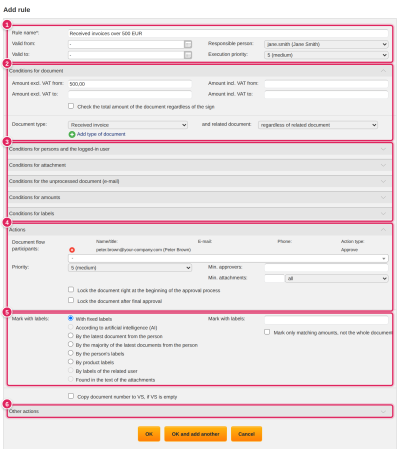
The form in the picture is filled in with the first rule from the example:
- Header - the name, the validity period and the “Responsible person” who looks after the rule. The “Execution priority” determines the order in which the rules are evaluated (1 is the highest). Thanks to this, a rule with a lower priority can work with labels that were added by a rule with a higher priority.
- Conditions for document - the sum and the document type. Here, a sum excluding VAT from 500 and the type “Received invoice” are entered.
- Further conditions - persons, attachment, unprocessed document, amounts and labels. They are collapsed as long as nothing is filled in them; you open them by clicking the heading.
- Actions for approval - who approves the document (here Peter Riaditeľ), at which place in the list ReFIS adds them, and how many approvers and attachments are required.
- Mark with labels - which labels ReFIS marks the document with.
- Other actions - warnings and other values the rule sets.
The rule applies to documents with a date in the period “Valid from” - “Valid to”; an empty field means no limit.
Conditions
The document must meet all filled-in conditions at once. What you do not fill in, the rule does not check. So if you fill in both the sum and the document type in the rule from the picture, the rule is applied only to received invoices over 500 EUR - not to received invoices for 300 EUR, nor to issued invoices over 500 EUR.
Within one field with a list of values, it depends on the field whether one value is enough or all of them must apply:
- persons, types of persons, positions, texts and words - one of them is enough
- “Contains labels” - the document must have all the given labels
- “Does not contain labels” - the document must not have any of the given labels
Conditions for document
- sum excluding VAT and including VAT from - to. By ticking “Check the total amount of the document regardless of the sign”, a credit note matches as well - for example, a credit note for -800 EUR is assessed as 800 EUR.
- document type, also with a condition on a related document. For example, a received invoice that has no related purchase order, or whose sum is higher than the sum of the related purchase order, also with an allowed tolerance. This way you can send invoices without a purchase order to the director for approval and have invoices that correspond to a purchase order approved only by the person who requested the purchase order. One rule can apply to several document types at once - you add another type with the “Add type of document” button, and the rule then applies to a document of any of the given types. You enter the condition on a related document separately for each type.
Conditions for persons and the logged-in user
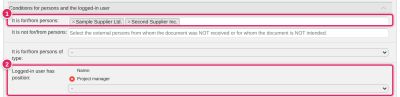
- “It is for/from persons” and “It is not for/from persons” - for which customers or from which suppliers in the address book the rule applies or does not apply. For example, invoices from the telecommunications operator are approved by the head of IT.
- “It is for/from persons of type” - a whole group of persons by person type, for example all energy suppliers, without listing them individually. The rule includes a new supplier of that type by itself.
- “It is for/from your own company” - if you record several own companies in ReFIS, the rule can apply only to the documents of one of them.
- “Logged-in user has position” - the rule applies only when a user with one of the selected positions is currently working with the document. This condition does not look at the document but at who is logged in. For example, a rule with the position “Project lead” and the action “Show warning” with the text “Add the project” warns only project leads; an accountant who opens the same document will not see the warning.
In the picture, the rule matches a document from either of the two suppliers (one is enough), but only if a project lead is working with it (both conditions at once).
Conditions for attachment
ReFIS searches the read text of the document's attachment for:
- “Texts in document” - also as part of a word: “web” also matches in the word “website”
- “Words in document” - only a whole word: “web” matches only the standalone word “web”
- the name, identifier or external identifier of a label that is subordinate to the selected label. For example, if projects have the job number in their identifier and the supplier states it on the invoice, the rule matches every invoice with the number of one of the jobs - and with the action “Found in the text of the attachments” marks it with the right project.
Conditions for unprocessed document (e-mail)
Texts and words in the description and note of the unprocessed document - for a document received by e-mail, the description is the e-mail subject. A rule with these conditions is applied only when adding a document from an unprocessed document.
Conditions for amounts
- sum excluding VAT and including VAT and unit price of the amount - it is enough if one amount of the document meets the condition
- “Quantity” - comparison of the quantities (or also the sums) of the amounts with the related documents. For example, with the action “Show warning” you are warned when an invoice bills a different quantity than was in the purchase order.
- “Texts in amount” and “Words in amount” - text in the name of the amount, the same as for the attachment
- “Payment terms” - with the option “none are entered”, the rule matches when the document has no payment terms. With the option “are not specified according to the template”, it matches when the payment terms of the document are not filled in from the selected template or when they lack something the template contains (description, retention, early payment discount, late payment interest). With the action “Show warning” (error), you thus do not allow saving, for example, an invoice for a construction job without retention.
- “The "We will pay on"/"They will pay on" date is not set by the user” - nobody has changed by hand the date on which you want to pay the document
Conditions for labels
- “Contains labels” - the document must have all the given labels. By ticking “Search also sub-labels”, a sub-label matches as well: a rule with the label “Projects” then applies to a document with any project.
- “Check labels separately per amount” - one and the same amount must have all the labels. If an invoice has an amount with the label “Project A” and another amount with the label “Marketing”, a rule with both labels matches it only without this box ticked.
- “Does not contain labels” - the document must not have any of the given labels, again also separately per amount.
- “There is at least one amount on the document, that does not contain exactly one sub-label” - a completeness check. For example, with the label “Projects” and the action “Show warning” (error) you do not allow saving a document where some amount has no project or has more than one. With the option “always identical sub-label”, all amounts must additionally have the same project.
- “Project category” - the document belongs to a project of the selected category, for example all internal projects.
Actions
Approval
In the “Actions” part, you enter who approves the document (or signs, processes or votes on it - depending on which of these the company has enabled). Besides specific people, you can also choose participants whom ReFIS determines only based on the document. One rule thus replaces dozens of rules for individual people:
- “Creator of the related document” - for example, an invoice for a purchase order is approved by the person who created the purchase order
- “Related user of the related document” - the requester in a purchase request and in an issued purchase order, the responsible person in a contract. For example, an invoice for a purchase order is approved by the person who requested the purchase order, and an invoice for a contract by the person responsible for the contract.
- “Superior of the related user or the paying person of the document” - the superior of the employee named in the document itself. For example, a purchase request is approved by the superior of the person who requested it. You set the superior in the address book as a related person with the relation “Is a manager for...”. Which employee the document names depends on the document type:
- “Purchase request requested by” in a purchase request and “Order requested by” in an issued purchase order
- “Responsible person” in a contract, project brief, issued quotation, goods receipt note, goods issue note and stock transfer note
- “Products received by” or “Products handed over by” in a delivery note and in an invoice that also serves as a delivery note
- the employee selected in the “Account/cash desk/person” field in a received invoice and in a received sales receipt - the person who paid the document
- “External person from the document”, “Superior of the external person from the document” and “Contact person of the external person from the document” - for example when the document is also approved by an external construction supervisor
- label owner - offered when you fill in labels in the “Contains labels” condition. For example, documents with the label “Marketing” are approved by its owner; when the owner changes, the rule does not need to be edited.
- project roles - ReFIS offers every role from the Project roles list. For example, if the company has the role project manager, the document is approved by the project manager of the project the document is marked with.
You also set:
- “Priority” - where in the list the approvers from this rule are added (1 at the top, 10 at the bottom). The document is approved from the bottom up, so the approver with priority 10 decides first.
- “Min. approvers” and “Min. attachments” - the document will be approved only when at least the given number of people have approved it and it has at least the given number of attachments
- whether the document is to be locked right at the start of the approval or only after the final approval
Labels
“Mark with labels” marks the document:
- “With fixed labels” - always with the same ones, for example an invoice for rent with the label “Building operations”
- “By the latest document from the person” or “By the majority of the latest documents from the person” - a monthly invoice from the telecommunications operator gets the same labels as the previous one
- “By the person's labels”, “By product labels” or “By labels of the related user” - labels from the address book, from the product, or the labels of the employee who requested the purchase request or purchase order or is responsible for the contract (for example their department)
- “Found in the text of the attachments” - with the labels found by the condition for the attachment
- “According to artificial intelligence (AI)” - if the company has artificial intelligence enabled
By ticking “Mark only matching amounts, not the whole document”, ReFIS marks only the amounts that meet the conditions for amounts or labels.
Other actions
- “Show warning” - either just a warning, or an error that does not allow the document to be saved or approved
- set the document description, external person, payment method or extended document type
- merge amounts by VAT rates or into one - when adding a document from an unprocessed document, for example when one amount per VAT rate is enough instead of a long list of items on the invoice
- replace the document's amounts with amounts from the related purchase orders or contracts - the invoice takes over the lines of the purchase order instead of its own
If several rules set the same value (for example the payment method) and each sets a different one, ReFIS does not set it. For the minimum number of approvers and attachments, the highest of them applies.
When the rules are applied
- When adding a document, the rules are applied continuously, already while the form is being filled in - also for documents added from unprocessed documents.
- When editing a document, according to the “Applying rules in document edit” setting in the menu Other → Settings → Document settings: only manually, automatically only on documents that are not fully approved, or always automatically. You apply them manually with the “Retrieve approvers by rules” and “Retrieve labels by rules” buttons in the form.
- When forwarding for approval, you can add approvers according to the selected rule.
ReFIS always checks the minimum number of approvers and attachments and the warnings, regardless of the setting.
List of rules
In the list, you see the name, the wording of the rule and the responsible person. You filter by text, approver and “Only valid rules”. With the “Bulk edit approver” function, you replace one approver with another in all selected rules - for example when an employee leaves.
Rules for unprocessed documents are separate, in the menu Other → Tools → Rules for unprocessed documents, and apply even before the document is processed.