Related documents link documents that belong together - for example a purchase order with the invoice that came for it, or a contract with the invoices issued under it. A related document can be a document recorded in ReFIS or just the number of a document that is not in ReFIS.
The related documents field
You enter related documents directly in the document form. In each document type, the field is named after what usually belongs to it, for example:
- for an invoice and a proforma invoice “Order / Contract”
- for an issued purchase order “Offer/contract/req.”
- for a delivery note “PO/contract/invoice”
- for a goods receipt note and a goods issue note “Delivery note/invoice”
- for a sales receipt “Related document”
- for a contract “Framework contract number”
When you click into the field, ReFIS offers documents of the same external person that are unpaid or only partially paid and at the same time are not closed. At the top are the documents whose amounts have the most labels in common with this document, then the newest ones. If you have not filled in the external person yet, ReFIS alerts you to it - it can only offer documents based on the external person. When you start typing a number, ReFIS searches for documents whose number begins that way, regardless of whether they are paid. With a large number of documents, the “View all” link shows all the remaining documents.
A document from ReFIS is shown in the field with the icon of its type. You add a number that is not in ReFIS with the option “add as a number without a document in ReFIS” - it is shown with a dashed border and by clicking its icon you can set its type (“Change type”), for example purchase order. Separate several numbers at once with a comma, semicolon or space. If the typed number matches a document in ReFIS, it is linked to it - upper and lower case, diacritics and spaces do not matter.
You change related documents later in the document detail with the “Edit related documents” function. A user who only has the right “Edit related documents (only add new)” can only add numbers and cannot change existing ones.
What happens with related documents
- Document detail shows related documents in both directions - the documents this document refers to as well as the documents that refer to it. Numbers that are not in ReFIS are listed as “Unrecorded document”.
- Matching of amounts. When you save the document, ReFIS matches its amounts to the amounts of the related documents - for example an invoice to a purchase order or contract, a sales receipt to the invoice it pays. When you remove a related document from the field, the matching to it is canceled on saving. The “Edit related documents” function does not change the matching.
- New documents. When you create documents from selected documents, ReFIS adds the selected documents as related on its own.
- Rules for documents can decide based on related documents - for example add for approval the person who requested the related purchase order, or check whether the sum of the invoice exceeds the sum of the purchase order.
Text in the document header
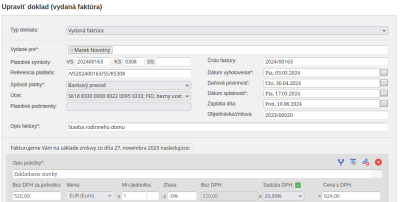
The text in the document header is shown in the form and in the PDF above the amounts. ReFIS creates it according to the document type as follows:
- purchase order: “We order from you as follows”
- purchase request: “We ask you for as follows”
- issued delivery note: “We have delivered to you as follows”
- issued invoice: “We invoice you as follows”
- issued credit note: “We credit you as follows”
The “Document header” field in the form and the “Document headers” setting apply only to an issued invoice, a proforma invoice, an issued purchase order and an issued delivery note; a purchase request has the text only in the PDF.
If the document has a related received purchase order or contract recorded in ReFIS, ReFIS adds its number and date to the text (for a contract only the date by default; you turn on the number in the settings), for example “We invoice you on the basis of order P240001 dated June 4, 2024 as follows”. The numbers of other related documents (except purchase requests) are shown in the text only if no purchase order, contract or advance invoice was added to it. You can edit the text - until you change it, ReFIS fills it in on its own.
Which related documents are added to the text, you set in the menu Other → Settings → Document headers separately for invoices, proforma invoices, purchase orders and delivery notes: “related purchase order numbers”, “related contract numbers”, “related advance invoice numbers” and “other related document numbers”.