The Unprocessed documents module automates the receipt and processing of received documents - invoices, sales receipts, purchase orders, bank statements and more. It can receive documents from several sources: from e-mail through Peppol to a scanner.
You find the module in the menu Documents → Unprocessed documents. On the left of the screen is the list of documents, on the right a preview of the attachment you select in the list.
How documents get into ReFIS
- By e-mail. Every company has its own mailbox in ReFIS with an address in the form …@mailbox.refis.sk. You find it when uploading documents and in the empty list. A document you send or forward to the mailbox appears among the unprocessed documents together with the text of the e-mail, and you can then reply to the e-mail directly. We recommend that suppliers send invoices to an address in your domain, for example invoices@your-company.com, and that your e-mail administrator forwards it to the ReFIS mailbox. How ReFIS tells several such addresses apart is described in the Routing section.
- Through Peppol. If the company has Peppol switched on and has a Peppol ID, e-invoices its suppliers send through the Peppol network arrive here already read - ReFIS fills their data into the form by itself during processing. More in the article on electronic invoicing.
- By uploading from your computer. With the “Upload new documents” operation you upload several files at once. If you tick “Upload all attachments as separate documents”, each file becomes a separate document. You can also drag files straight into the list. ReFIS unpacks a ZIP archive automatically.
- With the mobile app. In the mobile app you take a photo of the document (“Upload via camera”) or scan the QR code of a sales receipt (“Upload via QR code”).
- From a network drive or another system. ReFIS regularly takes over documents from a network or local drive, over SFTP, WebDAV and the like - for example scans from a network scanner - but also purchase orders, goods receipt notes and invoices from dealer and other systems it is connected to. More in the article Importing documents from a network drive. With the “Refresh the list of documents” operation you load them right away, without waiting for the regular load.
What ReFIS does by itself
- Reads e-invoices. It recognizes electronic invoices even when they are embedded in a PDF. It fills their data into the form, so you do not retype anything. Such a document has the status “Extracted successfully”. Supported formats include, for example:
- the Czech ISDOC format
- the European UBL format (Peppol BIS)
- the German and French ZUGFeRD and Factur-X formats
- the German XRechnung format
- Reads scans and PDFs - it fills the data into the form so that you do not have to retype the document, and you can also search documents by the text it read. A document that has been read has the status “Extracted successfully”, just like an e-invoice. If the company has “Extract data from the document immediately after uploading” switched on in the menu Other → Settings → Document settings, this happens by itself for every new document. Otherwise you send the document for extraction with the “Extract data from the document” operation.
- Reads attachments and statements - if the important information is in an attached file (XLSX, PDF and the like) rather than on the invoice itself, ReFIS can use the data from it. This kind of reading is set up for a specific company. Common examples:
- reading an invoice from a telecom operator and splitting the items by phone number (even with automatic assignment of costs to a specific department based on the company's organizational structure)
- splitting car leasing between departments
- allocating the costs of gas, electricity and the like between branches
- Warns about duplicates - when another unprocessed or processed document already has the same attachment, or when a document with the same number from the same person already exists.
- Applies rules. With the rules for unprocessed documents (menu Other → Tools) the company decides how far the processing of documents should be automated - from assigning a document to the responsible user, marking it with labels or moving it to another company by sender, e-mail recipient or text in the attachment, up to filling in invoice items from an attached XLSX table, filling in the goods receipt note number as a related document or processing payslips in bulk. Only the rules the company has switched on are offered.
List and filters
In the list you see for each document the sender, external persons, description, note, attachments, date of receipt and the data extraction status. You can edit the description and the note directly in the list.
You can filter documents by:
- search term - it searches the description, the sender's name and the read text of attachments
- external person
- assigned user, or only unassigned documents
- labels and document type
- extraction status: Not extracted, Extraction in progress, Extracted successfully, Extracted incorrectly
You can also filter deleted documents. They stay in the “recycle bin” for five days, during which you can bring them back with the “Restore deleted documents” operation; after that they are deleted permanently.
Processing a document
With the “Process document” operation you move the document among the other documents:
- Choose how to process the document - for example as a received invoice, a sales receipt or a project. If ReFIS recognized the document type - from the e-invoice or from the extracted data - it is already preselected.
- Fill in the form. On the right you see a preview of the attachment; ReFIS shows an e-invoice as a readable invoice and also points out errors according to the electronic invoicing rules.
- Save the document.
Below the form heading you see who sent the document and how - for example “E-mailed by”, “Sent via Peppol by” or “Photographed in the mobile app by”.
If you process several documents at once, the next one opens after you save one; you can also skip a document. After saving, the attachments and the e-mail move to the new document and the unprocessed document disappears from the list. The saved document then continues according to the document rules - for example with approval.
If the data of the document was extracted incorrectly, report it during processing with the “Report incorrectly extracted data” link in the preview.
Routing
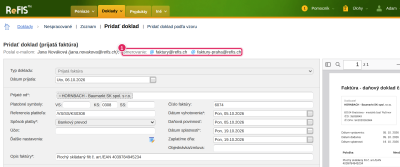
When processing, below the form heading there is a “Routing” line by which you route the document further - for example to the right cost center.
ReFIS shows there:
- the company addresses the e-mail with the document arrived at - if the company receives documents at several of its own addresses, for example invoices-boston@your-company.com and invoices-chicago@your-company.com. If the e-mail arrived at several of them at once, all of them are shown. Other recipients of the e-mail, for example colleagues in copy, are not shown.
- the buyer reference (BT-10, BuyerReference) from the e-invoice - information the supplier puts in the e-invoice at your request, for example a cost center number or the name of the person who placed the order.
For ReFIS to recognize the company's own addresses:
- In the menu Other → Settings → Basic information about the company, add each such address as an e-mail with the type “E-mail for incoming documents”. This type is offered only for your own company.
- Forward the addresses to the ReFIS mailbox. The forwarding is set up by your e-mail administrator.
Other operations
- “Assign attachments to an existing document” - you move the attachments to a document that is already in ReFIS, or to a project. The unprocessed document then disappears from the list.
- “Merge documents” - you turn several unprocessed documents into one with all the attachments.
- “Split document” - you separate the marked attachments into one new document or each into a separate one.
- “Edit labels” - labels in the “Transfer to document” field are transferred to the document when it is processed; labels in the “Do not transfer to document” field only serve routing and visibility while the document is unprocessed.
- “Assign documents” - you decide which user will process the documents.
- “Move to another company” - if you work in several companies and the document belongs to another one.
Attachments
In the preview you can download an attachment, upload a new one to the document, rename an attachment or delete it. You can mark an attachment:
- as suitable or unsuitable for data extraction. Only suitable ones are then sent for extraction.
- as suitable or unsuitable for archiving. Unsuitable ones, for example logos from an e-mail, are not transferred when the document is processed.
If the document came by e-mail, you can switch to the e-mail in the preview and reply to it.
You edit an image (JPG, PNG, GIF) by double-clicking it in the preview: you rotate it, crop it, undo changes and save it. Saving replaces the original image with the edited one.
Access rights
Depending on the assigned rights, a user sees:
- all unprocessed documents
- only documents assigned to them
- unassigned documents
- documents they uploaded themselves
Rights add up: if, for example, a user has the last two rights in the list, they see unassigned documents as well as documents they uploaded themselves.