With labels you divide up the activities, projects, objects and reasons for payments for which you want to track money. From amounts, documents and time entries marked with labels you then get management information - for example, how much each project or car costs.
Our consultants will help you design your labels. You can add to and change labels while you use ReFIS; they do not have to be final at the start.
Labels form a tree in which one label can also have several parent labels (technically, a directed acyclic graph).
Example labels
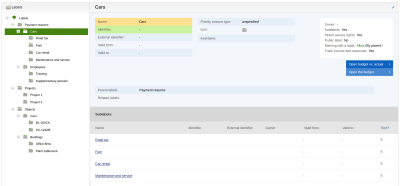
- Payment reasons
- Cars
- Road tax
- Fuel
- Car rental
- Maintenance and service
- Employees
- Training
- Supplementary pension
- Cars
- Projects
- Project 1
- Project 2
- Objects
- Cars
- BL-160CK
- SC-123AB
- Buildings
- Office Brno
- Plant Jablonové
- Cars
You can mark an amount with several labels at once. You mark refueling the vehicle BL-160CK with the labels Fuel and BL-160CK - this way you evaluate the fuel expenses for all cars as well as all expenses for a specific car, including road tax and servicing.
Working with labels
You will find labels in the menu Other → Code lists → Labels. When you select a label in the tree, you add a sub-label to it with the “Add label” function. When you select the top level “Labels”, you add a top-level label.
For a label you enter:
- “Name” and “Parent labels”
- on the “Advanced” tab:
- “Identifier” and “External identifier” - codes by which another system, for example accounting software, recognizes the label
- “Valid from” and “Valid to” - ReFIS shows an invalid label in gray in the tree and in label selections; some selections do not offer it at all. A label whose parent labels are all invalid is invalid too.
- “Owner” - a user to whom you can give special rights to their labels; rules can send documents for approval according to the owner
- “Public label” - all users see the label and you do not set rights to it. When you mark a label as public, ReFIS deletes the rights set on it and on those of its sub-labels that inherit rights, and these become public too. A new sub-label of a public label is also public. When a label stops being public, check its rights. A label that does not inherit rights remains without rights until you set them.
- “Amounts”, “Time entries” and “Unprocessed documents (recommended)” - where ReFIS offers the label: when marking amounts and documents, when marking time entries, and in the mobile app among the recommended labels of an unprocessed document. By default it offers the label for amounts, documents and time entries, and among the recommended labels only once you allow it (see Marking with a label).
- on the “Budget” tab:
- “Priority amount type” - an income or expenditure label. The setting is used only in the budget calendar: when you click a cell in the row of a label with a priority amount type and create a new amount, ReFIS preselects income or expenditure in the “Amount type” field.
- “Track income and expenses for this label” - when a document is being approved, ReFIS shows the budget, the actual figures and the difference for the label. When you turn the option off, the label is shown there by its name only, without amounts.
- “Year displayed” - for which year ReFIS shows the budget consumption when a document is being approved: “by document year” (by the due date of the document), “all years together” or “by parent label”, that is, according to the parent label. If at least one label of the document has “all years together” set, ReFIS shows all years together.
- on the “Documents” tab, “Required documents” - which document types are expected for the label, for example a contract for a project
- on the “Other” tab, the label icon and related labels
Sorting sub-labels
You sort sub-labels by dragging them with the mouse or with the “Sort?” link in the header of the “Sub-labels” list. In the “Sort labels” window you choose sorting by name, identifier or external identifier. The options “Identifier (numeric)” and “External identifier (numeric)” sort identifiers as numbers, so 2 comes before 10. ReFIS remembers the chosen sorting and also places new sub-labels according to it. If you later drag the sub-labels with the mouse, the remembered sorting is cancelled.
Marking with a label
For each label you set separately for amounts, time entries and recommended labels of unprocessed documents:
- “Allow marking with this label”
- “Do not allow marking with this label”
- “Allow marking only if it has no sub-labels” - only the lowest labels of a branch can be used for marking
- “Inherit settings from parent labels” - this way you set up a whole branch in one place, similarly to rights
Projects, Employees and Unmarked
ReFIS creates and manages some labels itself:
- ReFIS does not open sub-labels of the “Projects” label in the Labels module, but redirects you to the Projects module.
- For employee labels (sub-labels of the “Employees” label) you can edit only the identifiers. You cannot add a sub-label under the “Employees” label or under employee labels.
- Amounts without a label have the “Unmarked” label; you filter them by it. You cannot edit it.
You cannot delete the labels “Projects”, “Employees” and “Unmarked”.
Importing and exporting labels
- With the “Download” function in the Labels module you save the label tree to an XLSX file - with identifiers, owner, rights inheritance and priority amount type.
- In the menu Other → Import and export → Labels → Import of labels (XLSX) you create or edit many labels at once, for example when introducing ReFIS. As a basis you use the sample file or the downloaded labels. The level of a label in the tree is determined by the indentation of its name in the first column. A row with a filled-in ID (a hidden column in the downloaded file) edits an existing label. A row without an ID creates a new label, even if a label with the same name already exists. When you place a label under a different parent label in the file, ReFIS adds it there and keeps its existing parent labels. The option “Remove original parent labels” removes them. Before the import, ReFIS shows a preview including faulty rows, and the labels are written only by the “Import labels” function.
- If you have access to several companies, in the same menu under Synchronization of labels with another company you set that the label tree of one company, for example the projects, is transferred to the other companies. You can then delete synchronized labels only in the main company.
- You can also create project labels by importing projects in the menu Other → Import and export → Projects → Import of projects (XLSX), see Projects.
Deleting a label
When you delete a label, the amounts, documents and time entries remain; only the label is removed from them. If the label has sub-labels, you choose whether to delete them too, or move them under one of the labels above it in the tree or to the top level (“Labels (highest level)”). Sub-labels that also have another parent label stay under it, and ReFIS does not delete them.