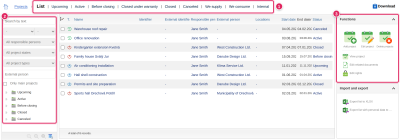
In the Projects module you keep track of the company's jobs and internal projects - who leads them, who they are for, what status they are in and how much money goes into them.
Project types
- Supply project (for the customer) - the company supplies its goods or services to a customer
- Purchasing project (for us, from the supplier) - the company buys goods or services from a supplier
- Internal project (for our company) - the company carries out the project and also uses its result itself
You recognize the project type in the list by the icon in the column “T.”.
Project statuses
A project is “Upcoming”, “Active”, “Before closing”, “Closed” or “Canceled”. A closed project is under warranty until the date “Warranty period until” - if you do not enter it, ReFIS sets it to two years from the end date (if the project is closed and the end date is entered), otherwise from the expected end. If that is not entered either, the field stays empty.
List of projects
With the tabs above the list (1 in the picture) you narrow the list down to projects in one status, for example “Active” or “Closed under warranty”, or to projects of one type.
On the left (2) you search by text, period, responsible person, status, project type, category (if the company has categories entered) and external person. You see the option “Only main projects” only if some project has subprojects; it hides them. If some project has subprojects, there is a tree of parent projects below the filters. With the magnifying glass below them you open the detailed search - for example by category, location or start and end dates.
Functions (3):
- “Add project”, “Edit project”, “Delete projects” and “View project”
- “Edit related documents” - documents of the project, for example the contract with the customer
- “Edit rights” - who sees the project and what they may do with its amounts, see below
- in the Import and export section you export the list to XLSX
Projects and labels
Each project is also a label under the label Projects. You therefore set access rights for projects in the same way as for other labels, and a project can have subprojects. A construction company can, for example, structure its projects like this:
- project “Construction of the sports hall Orechová Potôň” (supply project)
- “Permits and site preparation” (purchasing project - if the company wants to track this stage separately)
- “Shell construction of the hall” (purchasing project)
- “Installation of air conditioning” (purchasing project - the company orders part of the work from an external supplier)
- project “Family house Svätý Jur” (supply project)
Thanks to this structure you see all the money for the “Construction of the sports hall Orechová Potôň” and at the same time also the money for the subproject “Installation of air conditioning” alone.
Tracking money for projects
Amounts that relate to a project - budgeted, agreed, invoiced and payments - you mark with the project's label. You then see the totals for the project's label in the Labels module and in the report Income and expenditure grouped by labels. How to draw up a project budget is described in the article Budget.
Project roles
With project roles you determine who holds which role in a project - for example a member of the project team, a project programmer or the construction supervisor of a particular building. Rules for documents can use them, for example, to select the approver of the project's documents.
Project categories
You can divide projects into categories that you define yourself.