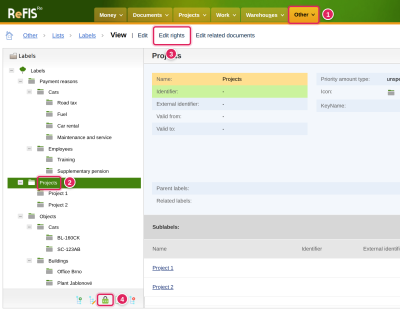
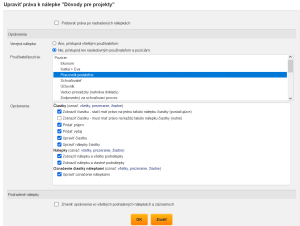
You set access rights to a label in the menu Other → Code lists → Labels: you select the label and use the “Edit rights” tab or the “Edit label rights” function. The form opens with the current access rights and you edit them there. You can also edit the rights to a project in the Projects module with the “Edit rights” function.
Rights to a label are defined for:
- an employee (user)
- a job position (group)
General properties of rights
For each right you define:
- Operation: What they can do - which specific operation they can perform, for example “Edit amount”.
- User or job position: Who can do it - an employee or a job position. If an employee has several positions assigned, their rights are the union of the rights of the individual positions.
- Labels: On which label - for some operations you choose on which label they can be performed. For operations such as “Add VAT rate” this parameter makes no sense (it is a global setting). For operations such as “Edit amount labels” it does make sense, and the rights are defined for the label. As a result, ReFIS allows separate permissions for individual parts of the hierarchical label structure. For example, you can give an employee different access to the labels under “Payment reason” and to the labels under “Departments”. The rest of this article deals with exactly this type of rights, referred to below as “ternary rights” (consisting of three parts, threefold).
Labels, amounts and marking with labels
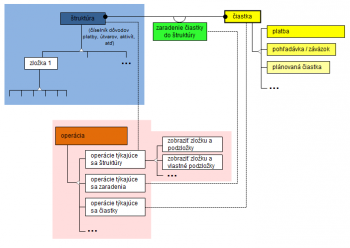
In ReFIS you define ternary rights for three objects (their relationship is explained in the diagram):
- Labels
- Marking of an amount with labels
- Amount (payment, invoiced amount, agreed amount...)
The rights for all three objects above are defined for a label. The list of ternary rights follows:
- Labels
- Š0: Public label - the user sees the label; you do not define any further rights for a label with this right.
- Š1: Show label and all sub-labels - you set the user to see only this label (and its sub-labels, unless they have rights redefined otherwise)
- Š2: Show label and own sub-labels - you set the user to see only this label (and those of its sub-labels that the user owns, unless they have rights redefined otherwise)
- Marking of an amount with labels
- Z1: Edit marking with labels - the user can add or edit the “Marking with a label” object.
- Amounts
- Č1: View amount - the right to one such label of the amount is enough (sufficient) - you set the user to see only the amounts marked with this label; having this right on one label is enough
- Č2: View amount - the right to every such label of the amount is required (necessary) - you set the user to see only the amounts where they have this right on all labels of the amount with this setting. In other words, if a label has this right set, it becomes mandatory for everyone, and the user must also have this right on all such labels of the amount to see the amount.
- Č3: Add income and Add expenditure - you set the user to be able to create new records only when they are marked with this label
- Č4: Edit amount - you set the user to be able to edit amounts marked with this label
- Č5: Edit amount labels - you set the user to be able to change the marking of amounts with labels if the amount is marked with this label (if they do not have the right to the Edit amount operation, they can only change the marking with labels, not the other attributes of the amount)
In the same way as for labels, you define rights for the special label “Unmarked”. By defining rights for this label you control the creation and editing of amounts without any marking selected.
Inheritance of rights
Inheritance of rights for labels
With the “Inherit rights from parent labels” option you make a label take over the rights of its parent labels (so that you do not have to define rights for each label separately). Let
- label F1 have two parent labels F2 and F3
- F1 have inheriting rights from parent labels switched on
- F2 have the rights P2 = {[Show label and all sub-labels], [], [View amount, Edit amount labels]}
- F3 have the rights P3 = {[Show label and all sub-labels], [Edit marking with labels], [Edit amount]}
Then label F1 has the union of rights P2 and P3 = {[Show label and all sub-labels], [Edit marking with labels], [View amount, Edit amount labels, Edit amount]}
In another case, let
- label F1 have two parent labels F2 and F3
- F1 have inheriting rights from parent labels switched on
- F2 have the rights P2 = {[Public label]}
- F3 have the rights P3 = {[Show label and all sub-labels], [Edit marking with labels], [Edit amount classification]}
Then label F1 has the union of rights P2 and P3 = {[Public label], [Show label and all sub-labels], [Edit marking with labels], [Edit amount classification]} (the rights that you do not define for a public label are struck through).
The form also contains the option “Change permissions on all sub-labels and records”. This option takes all sub-labels, removes the rights originally set for them and sets “Inherit rights from parent labels” for them. Use it when it would be needlessly laborious to go through the sub-labels and set the “Inherit rights from parent labels” option for each one separately.
Inheritance of rights for amounts
Inheritance of rights is applied in the same way to an amount marked with N labels. So let:
- amount C be marked with labels F2 and F3
- F2 have the rights P2 = {[Show label and all sub-labels], [], [View amount]}
- F3 have the rights P3 = {[Show label and all sub-labels], [Edit marking with labels], [Edit marking with labels]}
then on amount C the user has the union of rights P2 and P3 = {Show label and all sub-labels, Edit marking with labels, View amount, Edit marking with labels} (operations that do not concern amounts are struck through).
Thanks to the marking with label F2 the user sees the amount, and thanks to the marking with label F3 they can change its marking with labels.
Examples
Imagine a construction company that assigns labels to documents related to projects (construction sites) as follows:
- A label identifying the project, i.e. the construction site
- A label identifying the type of expenditure, for example “Site preparation”, “Site fencing”, “Construction supervision”, “Excavation work” or “Waste removal”. Below, these labels are called “Project reasons”.
The project label is assigned by an administrative employee during the initial processing of the document. The project manager's duty is to assign the second label from “Project reasons” as part of the approval. The company wants to set the access rights so that the project manager:
- can mark the amounts of a document with a project reason,
- can see only documents related to their projects
- but cannot remove the project label, so that they cannot artificially reduce the expenditure of their project.
You set up this requirement as follows:
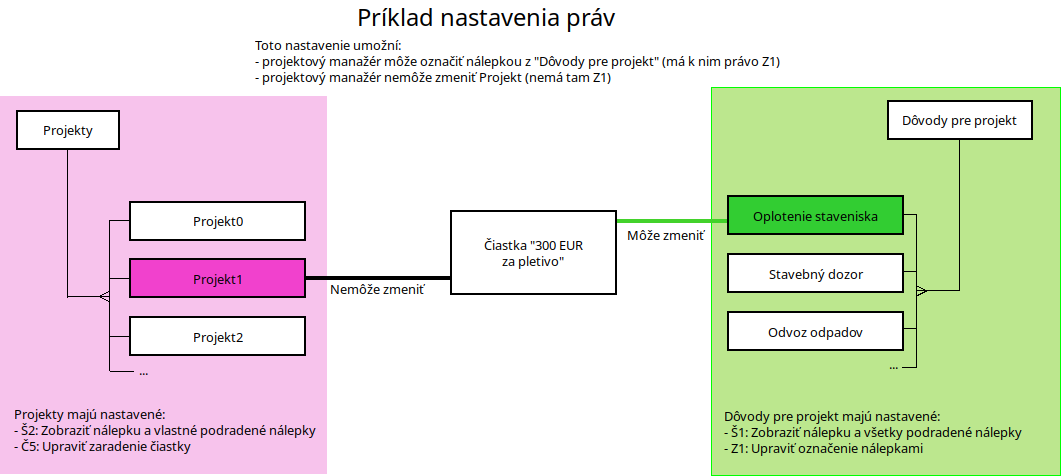
- For “Projects” you set the rights Š2 (Show label and own sub-labels) and Č5 (Edit amount classification)
- For “Project reasons” you set the rights Š1 (Show label and all sub-labels) and Z1 (Edit marking with labels)
Diagram showing this setting (note the black and green relations, which represent the marking of an amount with labels):