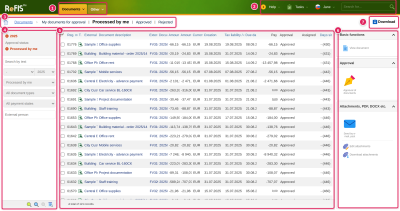
The screen controls are the same on every ReFIS screen: the menu at the top, search on the left, the list of records in the middle and on the right the functions you perform on the records. What is described here applies in every module and is not repeated in the articles about individual modules.
Menu
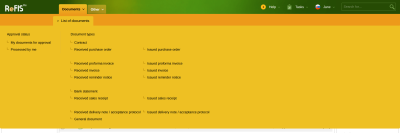
The top bar holds the main menu items: Money, Documents, Projects, Work, Warehouses (if the company has the Warehouse module enabled, otherwise Products) and Other. You see only the items you have rights to.
The menu opens when you move the mouse over it:
- below a main item an orange row with its parts appears, for example for Documents “Unprocessed documents” and “List of documents”
- a part with an arrow expands, when you move the mouse over it, into a panel in which the links are grouped under headings, for example “Approval status” and “Document types”
Clicking an item that is also a link (for example Money) takes you straight to its start screen. Most links in the menu remember the filters and sorting you last used in the list.
Below the menu is a row of tabs: the house leads to the start screen, after it come the module and the tabs of its list, for example “My documents for approval” or “Approved”. Tabs that do not fit into the row are shown through “More”.
Top right
- “Search for...” - search across the whole of ReFIS. Results appear while you type; clicking a result opens the record.
- “Help” - clicking it opens the help article for the screen you are on. When you move the mouse over it, it shows the contact to support (“Contact support”), news in ReFIS and a rating of how you like working in ReFIS. The number by the icon is the number of unread news items.
- “Tasks” - a list of what is waiting for you, for example documents to approve or unprocessed documents. The number by the icon is the number of unfinished tasks.
- your name - clicking it opens your settings, for example the language and password. When you move the mouse over it, it shows the companies you have access to, and clicking a company switches you to it. There are also Messages, “Settings” and “Log out”.
Search on the left
In the left bar you narrow the list down to the records you are looking for. Every change in a field takes effect at once, no search button is needed.
- At the top are the active filters. Clicking a filter cancels it.
- Below them are the search fields, for example text, period, status or type - different in every module.
- In a module that uses labels, you narrow the list by clicking a label in the tree.
- At the bottom are saved searches. Clicking one sets all its filters at once.
Icons at the bottom of the bar:
- “Remove active filters” cancels all filters at once.
- “Save search” saves the current filters under a name you enter. In some modules you can also show the saved search as a tab below the menu. If you have the right to, you can make it available to other users or positions.
- “Delete search” deletes the selected saved search.
- “Detailed search” opens a form with all the conditions you can search by in the module, not just those in the bar.
You change the width of the bar by dragging its right edge.
List of records
- Clicking a column name sorts the list by it, clicking again reverses the order.
- Clicking a row outside the underlined text selects the row (it gets ticked), clicking again cancels the selection. The icon above the checkboxes selects or deselects all rows.
- Clicking the underlined text opens the record detail.
- More records load as you scroll down the list. Below the list is the number of records, in some lists also the number and total of the selected ones.
- Greyed-out or struck-through rows are inactive or cancelled records.
Functions on the right
On the right are the functions you perform on the records, for example “Add issued invoice” or “Delete document”. They are grouped into sections that you expand by clicking their name. When you hold the mouse over a function, ReFIS shows its description.
A function that works with existing records is performed on the selected rows of the list. If you have not selected any row, some functions use the record open in the detail; ReFIS does not perform the others and shows a message. Functions that add a record do not need selected rows.
Record detail
The record detail opens below the list. Besides the data of the record it also contains related records, for example for a document its attachments, amounts, payments and approval history. With the icons in the detail heading you edit the record, show it full screen or close the detail. You change the height of the detail by dragging its top edge.
Download
With the “Download” function to the right below the menu you download the list to an Excel (XLSX) or CSV file. All records matching the current search are downloaded, not only the selected rows - if you want only some of them, first narrow the list down with the search on the left. In the form you choose the columns of the file, a total row and grouping; you can save the settings and use them next time.
With a large number of records ReFIS asks before the download whether you really want to export them. When the number of records exceeds the limit for the XLSX format, ReFIS offers only CSV.
Forms
- A field marked with an asterisk (*) is mandatory.
- Before saving, ReFIS checks the form. It shows errors, marks the fields in error and does not save the form until you correct them. It shows warnings too, but after confirming them you save the form anyway.
- You save the form with the “OK” button, “Cancel” closes it without saving. If you changed something in the form, ReFIS asks before closing whether you really want to leave it.
Login messages
- “Your session has expired.” - after a longer period of inactivity. You log in in a new window through the link in the message, and the unsaved data on the page are kept.
- “You are signed in to a different company.” - in another browser window or tab you switched to another company, and ReFIS did not carry out the request so that the data are not written to the wrong company. You reload the page or switch back to the original company.