You automatically import employees from Microsoft Entra ID in the menu Other → Import and export → Employees → Import from Microsoft Entra ID. In “Microsoft Entra ID setup”, you enter:
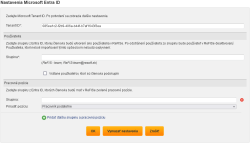
- First “Tenant ID” (Microsoft Tenant ID); after you confirm it, ReFIS displays further settings.
- Then, in the “Group” field, you enter a group from Entra ID. ReFIS creates the members of this group as users. When you remove a user from the group, ReFIS deactivates them. Users who were not imported this way are not affected.
- If you tick “Including users who are members of subgroups”, ReFIS also imports the members of subgroups.
- You can also enter pairs of a group from Entra ID and a job position in ReFIS. An imported user who is a member of the group gets the given job position.
Activation in Microsoft Entra ID
For the users of your organization to be able to log in to ReFIS with the Microsoft button, and for ReFIS to be able to import users from Microsoft Entra ID, an administrator must first add the ReFIS application to your Entra ID tenant and approve it.
ReFIS application details
| Item | Value |
|---|---|
| Display name | ReFIS |
| Application (client) ID | eaf05c21-8ae4-4af4-8e16-da73eb35431c
|
These details allow the administrator to verify that the application that appeared in your tenant's Enterprise applications list after the first login really is the ReFIS application from us.
Activation procedure
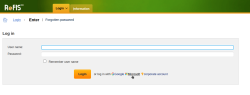
- Step 1. Open ReFIS and try to log in with the Microsoft button.
- Step 2. Grant consent on behalf of the organization. If you have the permission to do so, tick Consent on behalf of your organization and click Accept. This adds the ReFIS application to the Enterprise applications list in your Entra ID tenant. If a regular user attempts the activation, they will not complete the login. In the prompt, they will see the option to ask an administrator for approval only if your organization has the admin consent workflow enabled in Entra ID (Microsoft Entra admin center > Entra ID > Enterprise applications > Consent and permissions > Admin consent settings, option Users can request admin consent to apps they are unable to consent to = Yes).
- Step 3. In the Microsoft Entra admin center, go to Entra ID > Enterprise applications, find the ReFIS application in the list (verify the Application client ID against the table above) and open it (the ReFIS application is added to this list when you attempt to log in in steps 1 and 2).
- Step 4. Add the required permissions: in the detail of the ReFIS application, open the Permissions section and add the required Microsoft Graph permissions:
If you only want to allow login:
- User.Read (Delegated permission) - allows ReFIS to read the user's login name when logging in with the Microsoft button. This permission is mandatory for the login itself.
If you also want to use the import of users from Entra ID into ReFIS, additionally add as Application permissions:
- User.Read.All - reading the list of the organization's users.
- GroupMember.Read.All - reading group members (ReFIS imports users according to the group you choose in your settings). This is the least-privileged permission sufficient for reading memberships - the broader Group.Read.All is not needed.
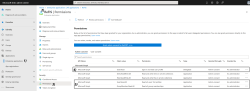
After adding the permissions, click Grant admin consent for <organization name> so that the permissions take effect for the whole tenant.