The Address book module contains the persons your company works with - suppliers, customers, employees, authorities and other companies as well as natural persons. Documents, amounts, projects, products and time entries refer to persons in the address book.
You find the address book in the menu Other → Address book.
List and filters
For each person the list shows “Name/title”, “Company ID”, “VAT ID”, “Person identifier”, “Type of person”, whether it is a natural person and whether it has a user account. For natural persons there are also the “Name” and “Surname” columns. Inactive persons are struck through.
On the left you filter persons by:
- name
- type of person - persons of subordinate types are shown as well
- whether they have a user account, are natural persons or debtors
- first letter
By default the list shows only active persons. To see inactive ones, clear “Only active persons”.
In the advanced search (“Search persons”) you can also search by Company ID, tax number, VAT ID, Peppol ID, VAT payers, country (home country, another country, EU countries), note, labels or by the person's documents - for example persons that do or do not have a document of the selected type in the selected period. You can save the search.
Adding a person
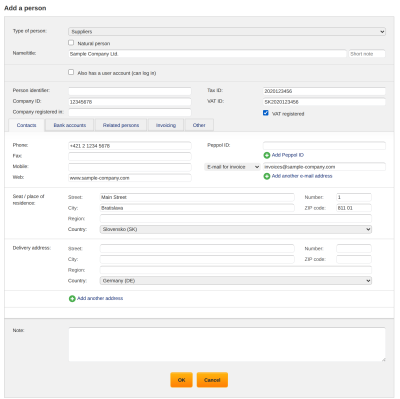
The “Add a person” operation opens the form. You fill in “Type of person”, “Name/title” and, for a natural person, also the first name and surname. For Slovak and Czech companies it is enough to start typing the name or Company ID - ReFIS offers companies from public registers and after you pick one it fills in the Company ID, tax number, VAT ID, VAT payer, registered office, bank accounts and Peppol ID. You find a company from another EU country by its VAT ID in the VIES system - ReFIS fills in the name and address if that country publishes them in VIES.
If a person with the same name, Company ID or tax number already exists in the address book, ReFIS warns you. You can still save the person.
The form has these tabs:
- “Personal data” - only for a natural person: citizenship, personal identification number, date of birth, identity card and its validity
- “Contacts” - phone, mobile, web, Peppol ID, e-mail addresses and addresses. For each e-mail you choose a type, for example “E-mail for invoices” or “E-mail for orders”. The main address is “Seat / place of residence”; you can also add a “Delivery address” and further addresses.
- “Bank accounts” - the person's account numbers, bank and currency
- “Related persons” - relations to other persons in the address book, for example “Is a contact person for...” or “Is the managing director of...”
- “Invoicing” - “Payment term (days)”, “Buyer reference on invoices”, default behaviour when sending documents (“Send proforma invoices by default instead of invoices”, “By default, send a delivery note before invoicing”, “Requires paper documents”) and marking as a debtor
- “Other” - languages the person communicates in, and labels
If the person has no payment term filled in, the payment term of your own company applies.
A new person takes over the settings “Requires paper documents”, “Send proforma invoices by default instead of invoices” and “By default, send a delivery note before invoicing” from the unspecified person. So if you want them switched on for most new persons, switch them on for the unspecified person. In the form you can change them before saving.
User account
A person can also have a user account with which they can log in to ReFIS. You tick “Also has a user account (can log in)” and fill in the e-mail and user name. This part of the form is shown only to a user with the right to add or edit users. With the “Send access by e-mail” operation you then send the person a link through which they set their password.
Other operations
- “Check data” - compares the selected persons with public registers (the business and trade registers, the VIES VAT number validation) and shows what differs - name, Company ID, tax number, VAT ID, VAT payer, Peppol ID, registered office and bank accounts. ReFIS saves the changes you confirm.
- “Merge persons” - turns several records of the same person into one. You choose the main record; documents, amounts, projects, products and time entries of the other persons are assigned to it. ReFIS fills empty data of the main record from the others and adds their e-mails, bank accounts, Peppol IDs and labels. At most one of the merged persons may have a user account.
- “Activate persons” and “Deactivate persons” - inactive persons are not shown in the list by default. If a person has a user account, it is deactivated too. When deactivating, you can also cancel contracts where the person is a contracting party.
- “Bulk edit persons” - for the selected persons you change the type of person at once, set whether they are natural persons, or clear the person identifier.
- “Delete persons” - documents, amounts, projects and other records of the deleted person remain; ReFIS assigns them to the unspecified person. The person's user account is not deleted, only deactivated.
- “Import from XLSX” and “Export list to XLSX” - bulk upload of persons from a spreadsheet and download of the address book with the columns you choose.
Unspecified person and own company
The address book contains two special records that you cannot delete or deactivate:
- Unspecified person - amounts and documents whose person is not known belong to it. For example, when importing a bank statement, not every person may be identified and some amounts are assigned to the unspecified person. This way you easily find them and complete them. Records of deleted persons also go to the unspecified person.
- Own company - your company. You edit its data in the menu Other → Settings → Basic information about the company.
Debtors
You mark a person as a debtor in the “Invoicing” tab (“Debtor (or has solvency problems)”) and you can add the reason. For Slovak and Czech companies ReFIS also regularly checks public sources and marks the person itself as “Debtor according to public sources”. It checks:
- for Slovak companies, debts to the Social Insurance Agency and to the General Health Insurance Company and the company's status in the register (liquidation, bankruptcy, suspended business, dissolution, probate proceedings)
- for Czech companies, the register of unreliable VAT payers and the insolvency register
You see debtors in the “Only debtors” filter, in the person's detail and when picking a person in forms, where they are highlighted in red. When the data from public sources change, the task “Change of address book data regarding debts and bankruptcies” appears in Tasks.
Access rights
A user with the right to view the address book sees all persons; the address book is not restricted by types of persons or by labels. Adding, editing, deleting, merging, activating and deactivating persons are separate rights.
A person who has a user account can be deleted, activated or deactivated only by a user with the right to edit or delete users, respectively.